
What Is a HEIC File? How to Open and Convert It on Windows
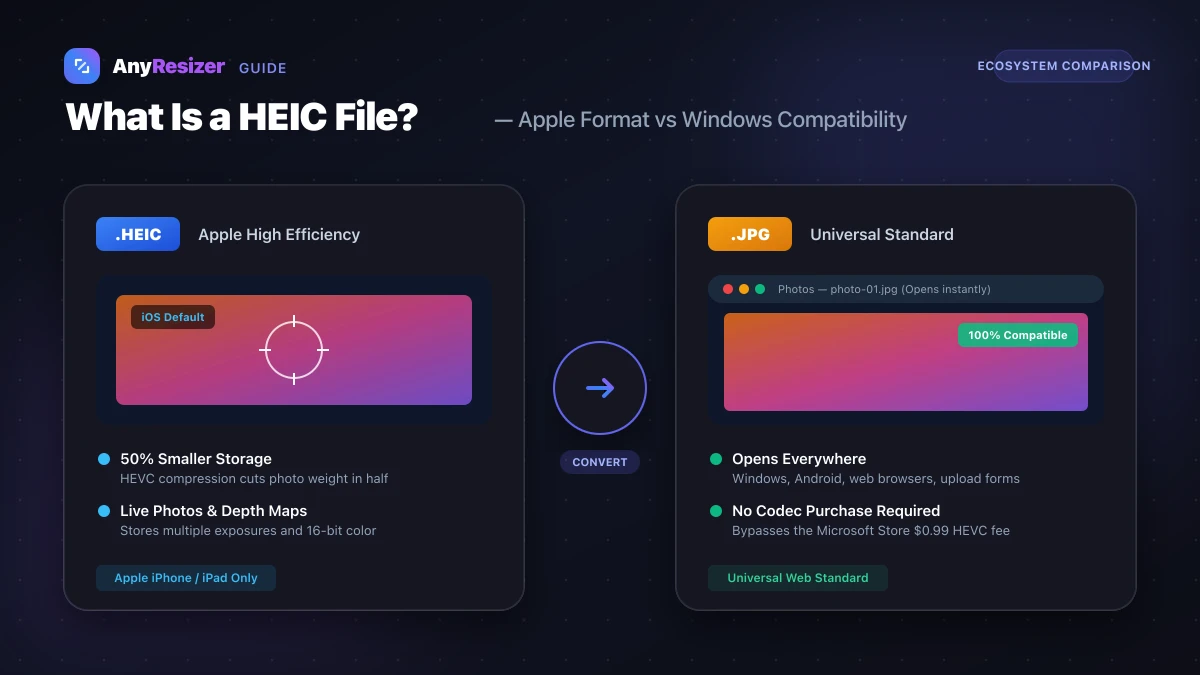
If you transferred photos from an iPhone to a Windows PC or tried uploading a photo to a job application, you probably ran into an unreadable .heic file.
Here is what the HEIC format is, why Apple uses it, and how to view or convert your photos on any device.
What Does HEIC Mean?
HEIC stands for High Efficiency Image Container. It is Apple's implementation of the HEIF (High Efficiency Image File Format) standard established by the MPEG group.
Unlike older formats like JPG, a single HEIC file can store:
- A high-resolution compressed photograph
- Live Photo image sequences and short video bursts
- Depth maps captured by multi-lens phone cameras
- HDR color data up to 16 bits per channel
To understand how HEIC compares to web-oriented formats, take a look at our guide on JPG, PNG, and WebP.
Why Apple Uses HEIC Instead of JPG
Starting with iOS 11, iPhones began saving photos as HEIC by default. The driving reason was device storage.
Phone cameras produce massive 48-megapixel images. Saving those files as conventional JPGs would quickly fill up phone storage and iCloud limits. HEIC uses advanced compression techniques borrowed from HEVC (H.265) video encoding.
In our side-by-side tests with identical phone cameras, HEIC files averaged 1.8 MB compared to 3.7 MB when captured as standard JPG.
Why Windows Cannot Open HEIC by Default
Microsoft Windows does not bundle the HEVC decoder due to patent licensing fees. When you double-click a .heic photo on Windows 10 or 11, the Photos app displays a message saying you need an extension.
You have three options on Windows:
- Buy the HEVC Video Extensions from the Microsoft Store for $0.99
- Use a third-party image viewer like VLC or IrfanView
- Convert the HEIC files to standard JPGs in your web browser
How to Convert HEIC to JPG
Converting your HEIC files into JPG gives you universal compatibility with Windows, Android, and web upload portals.
Drop your HEIC files
Select your iPhone .heic images directly from your computer.
Process locally
Your browser decodes the HEIC container and extracts the original photo data.
Download your JPGs
Save standard JPG files that open anywhere without errors.
Frequently asked questions

The AnyResizer editorial team benchmarks image codecs, compression ratios, and web graphic formats using in-browser WASM and Canvas engines.
Related guides
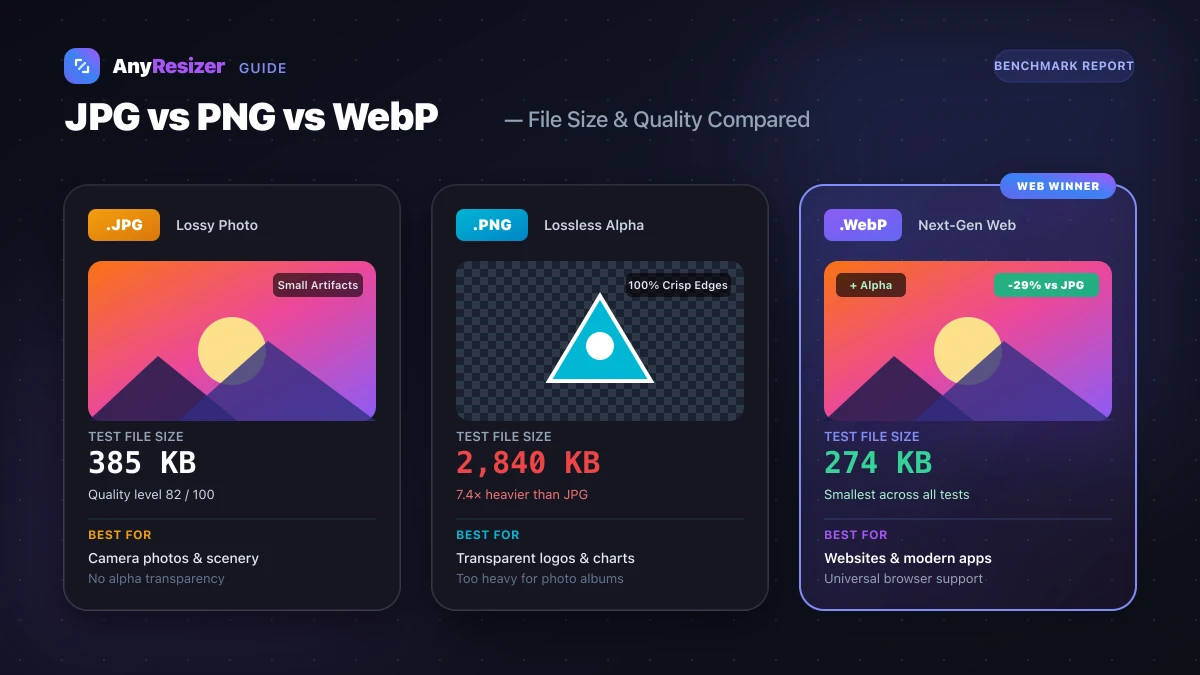
JPG vs PNG vs WebP: Which Image Format Should You Use?
Compare JPG, PNG, and WebP for photos, transparency, and website speed. See real test results and size benchmarks for all three formats.