
DPI vs PPI: What They Mean and When They Matter
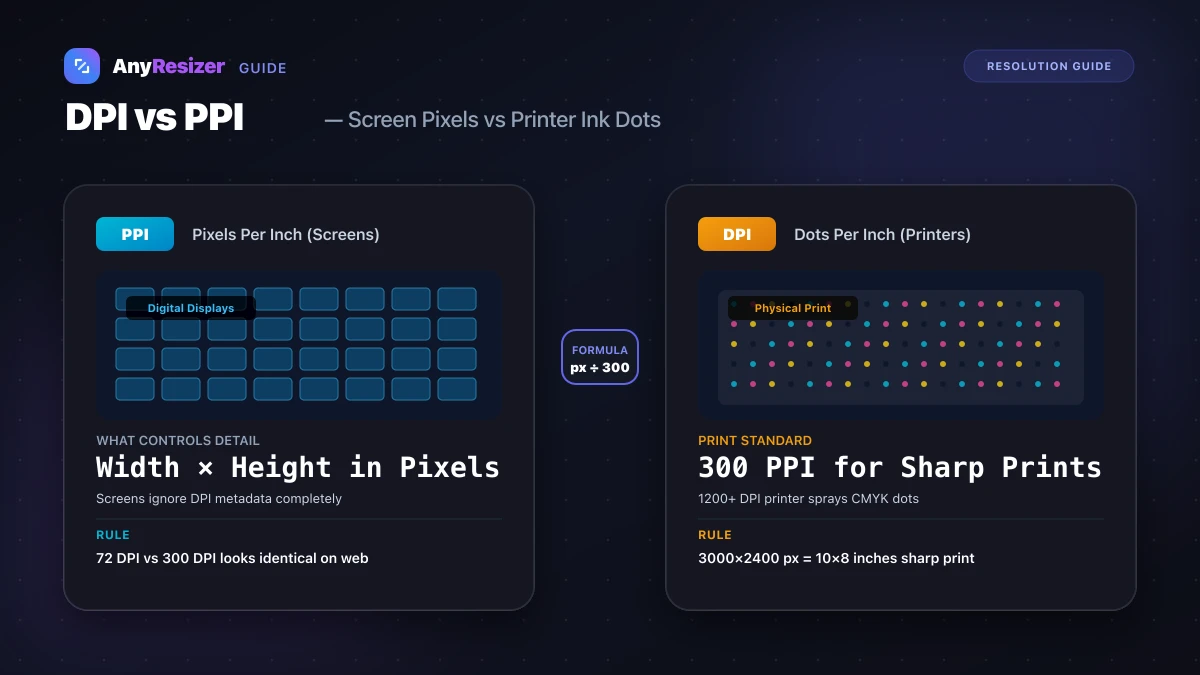
Graphic designers, photographers, and print shops frequently mix up the terms DPI and PPI. While both describe resolution, one belongs to the digital world of screens, and the other belongs to ink on physical paper.
Here is what each metric actually controls, why web designers can ignore DPI, and how to calculate image sizes for print.
What Is PPI (Pixels Per Inch)?
PPI describes the pixel density of a digital image or display monitor. It specifies how many individual pixels fit within one linear inch of screen space.
Key points about PPI:
- Higher PPI screens (like Apple Retina or 4K displays) pack more pixels into the same physical space, producing sharper text
- Digital image files store pixel dimensions (like 4000×3000 pixels), which determine their maximum display detail
- When preparing photos for websites, pixel dimensions are all that matters
If you are optimizing graphics for web performance, format choices also play a huge role. See our JPG vs PNG vs WebP comparison to see how format selection cuts load times.
What Is DPI (Dots Per Inch)?
DPI describes the density of physical ink dots that a printer sprays onto paper per linear inch.
Printers do not print square digital pixels. Instead, they deposit thousands of microscopic cyan, magenta, yellow, and black (CMYK) ink dots that blend together into continuous tones.
Key points about DPI:
- A desktop printer rated at 1200 DPI or 2400 DPI prints tiny overlapping ink dots to reproduce subtle shades
- DPI is a printer hardware specification, not a property of your digital image file
- A 300 PPI digital image may require a 1200 DPI printer to reproduce accurately on glossy paper
Same Pixels, Different Print Sizes
To see how resolution works in practice, examine how one 1800×1200 pixel photograph reproduces at different PPI settings:
| Digital Pixels | Resolution Setting | Resulting Print Size | Print Quality Rating |
|---|---|---|---|
| 1800 × 1200 px | 300 PPI | 6.0 × 4.0 inches | Excellent (Gallery Quality) |
| 1800 × 1200 px | 200 PPI | 9.0 × 6.0 inches | Good (Photo Album Quality) |
| 1800 × 1200 px | 150 PPI | 12.0 × 8.0 inches | Acceptable (Viewed from 3+ feet) |
| 1800 × 1200 px | 72 PPI | 25.0 × 16.6 inches | Blurry and Pixelated |
Notice that the total pixel count never changed. A higher PPI setting simply condenses those same pixels into a smaller, sharper physical print. For a complete sizing breakdown across 4×6, 5×7, 8×10, and poster prints, check our photo print resolution chart.
How to Set Image Dimensions in Pixels
When preparing an image for web publication, social media, or print submission, setting exact pixel dimensions prevents unexpected cropping and blur:
Check required dimensions
Determine the target width and height in pixels for your platform or frame size.
Lock aspect ratio
Maintain your original proportions to prevent stretching or distortion.
Resize in your browser
Use browser-based tools to downscale or crop to exact pixel measurements.
If your source file is an iPhone photo in Apple's modern format, read our guide on how to open and convert HEIC files before resizing. To see how pixel count and format choices impact your storage space, check our guide on how many KB is a photo.
Frequently asked questions

The AnyResizer editorial team benchmarks image codecs, compression ratios, and web graphic formats using in-browser WASM and Canvas engines.
Related guides
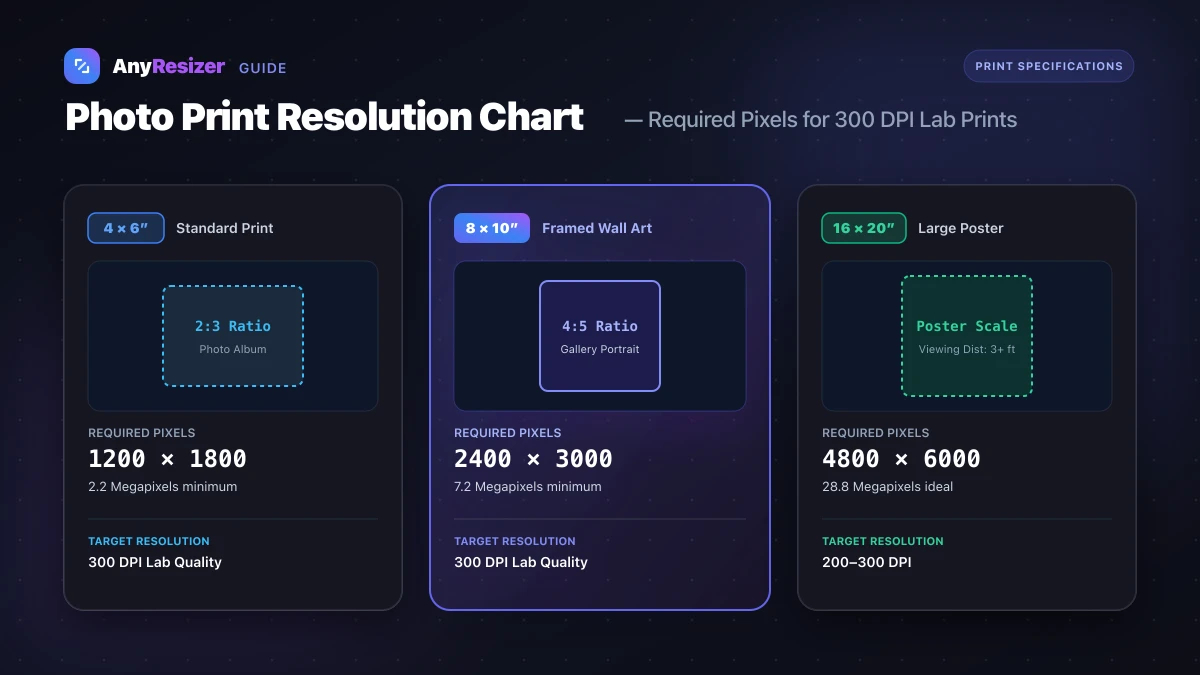
What Resolution Do You Need to Print a Photo? (Size Chart)
Find the exact pixel dimensions and DPI you need to print photos in 4x6, 5x7, 8x10, and poster sizes with crisp, lab-quality detail.
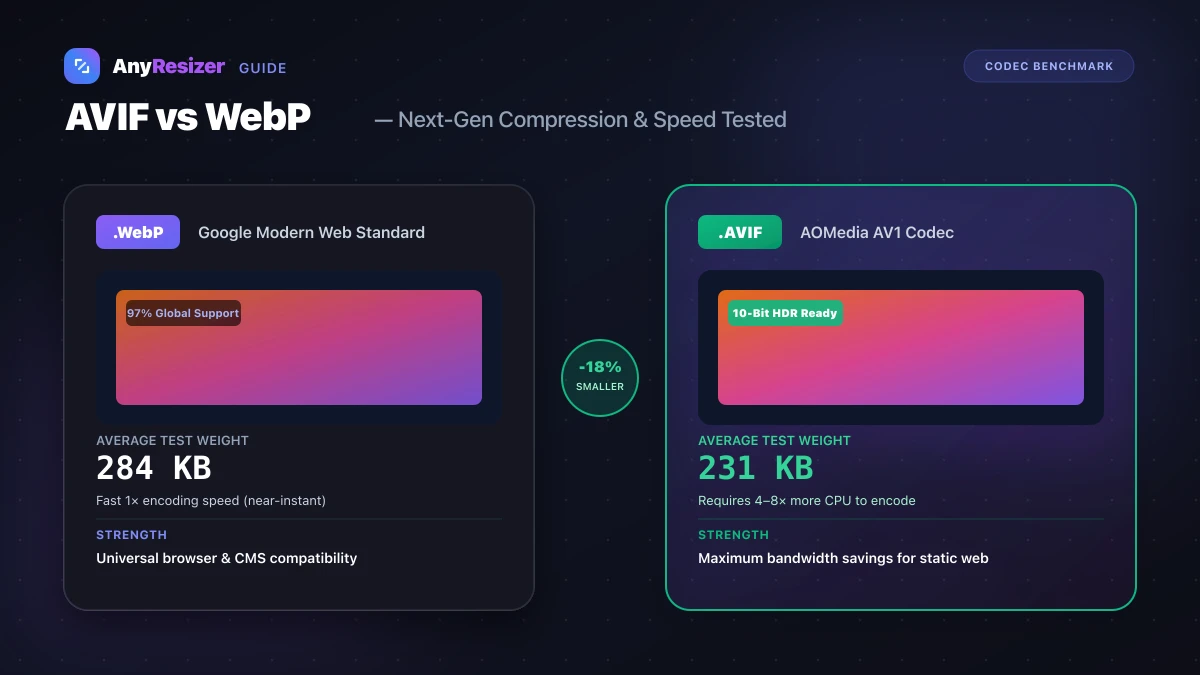
AVIF vs WebP: File Size and Browser Support Tested
Compare AVIF and WebP for image compression, decoding speed, and browser support. See measured file-size test results across 5 photos.
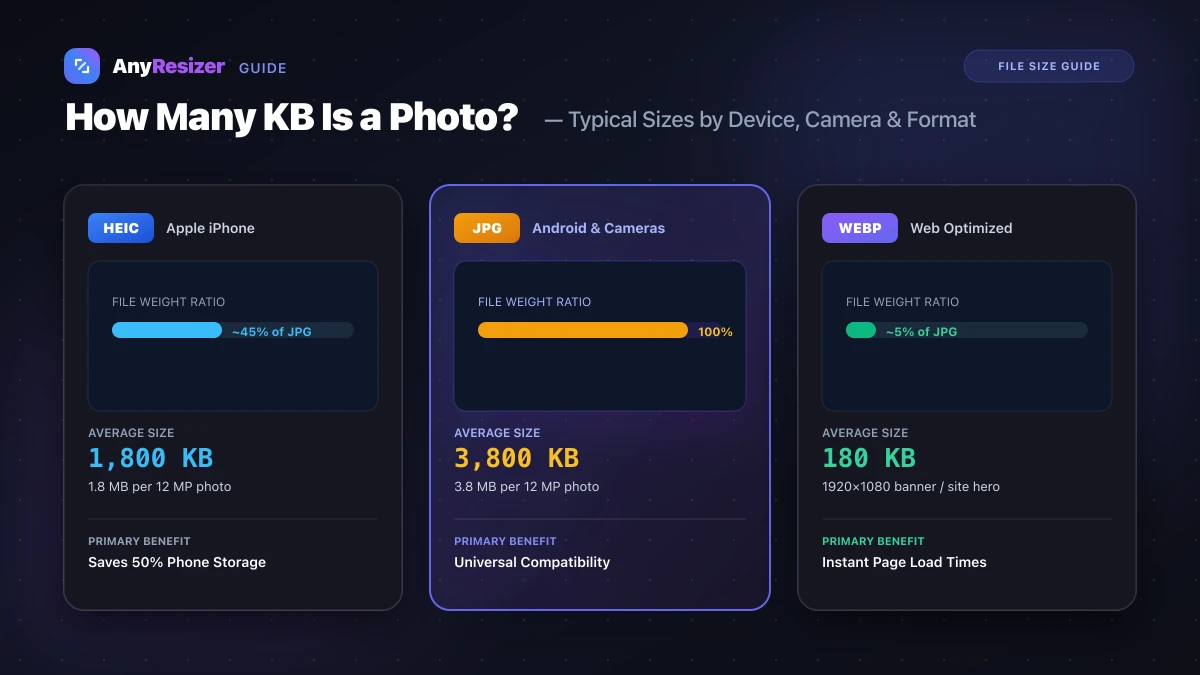
How Many KB Is a Photo? Typical File Sizes by Phone and Format
Learn the average file size of photos in KB and MB across iPhones, Androids, DSLRs, and web formats, with realistic benchmarks and size reduction tips.